

New AI Users
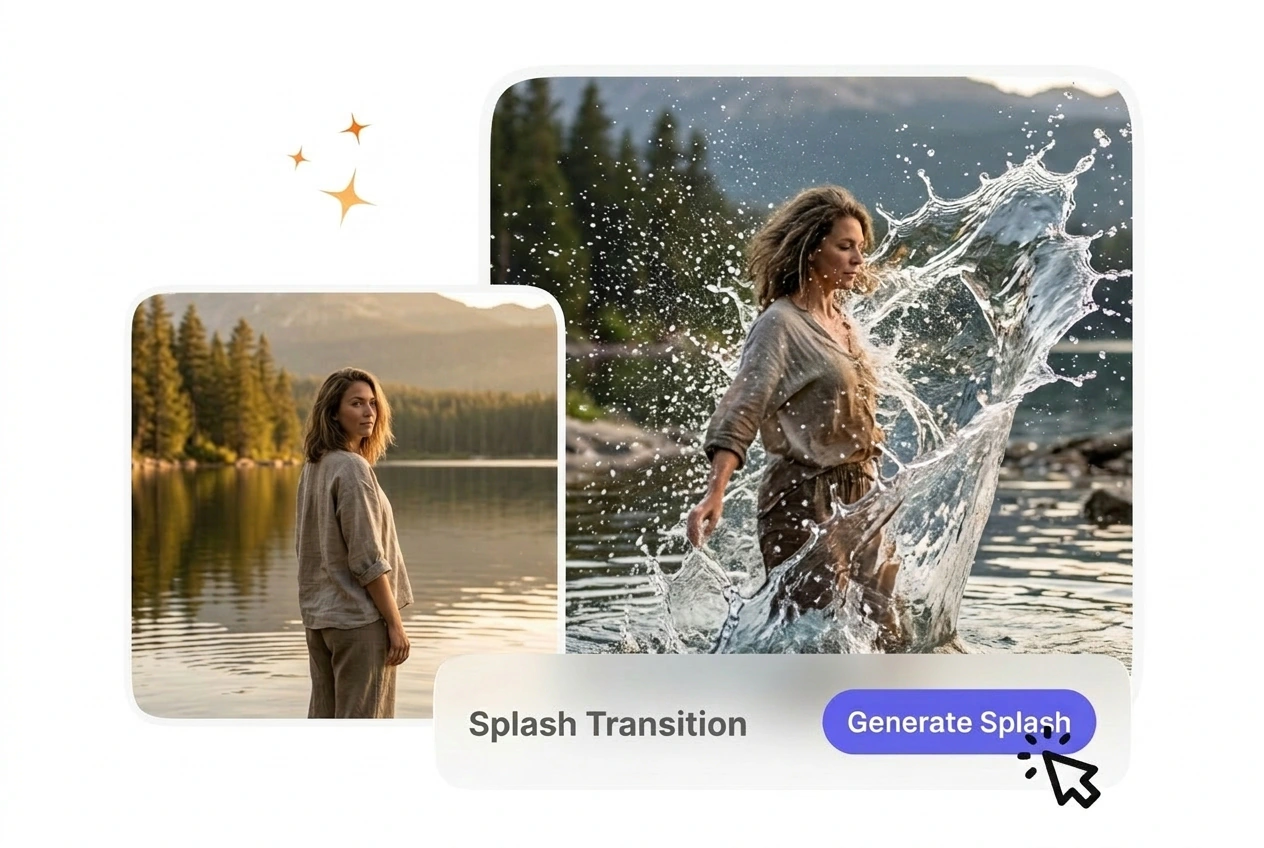
Beginners often struggle with complex timeline settings. VideoAI provides a straightforward interface where you just upload two frames and type a prompt. The engine handles the complex fluid dynamics so you export a usable clip quickly.
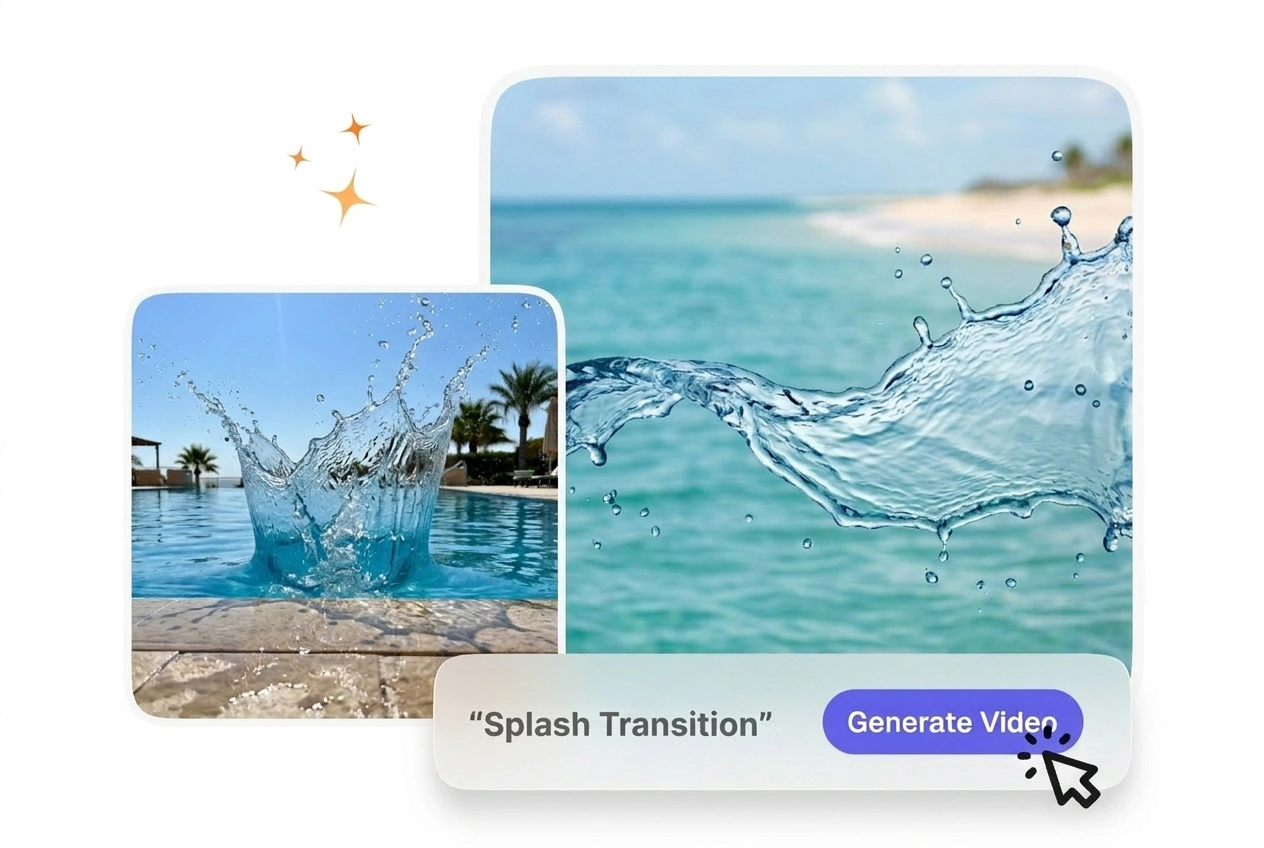
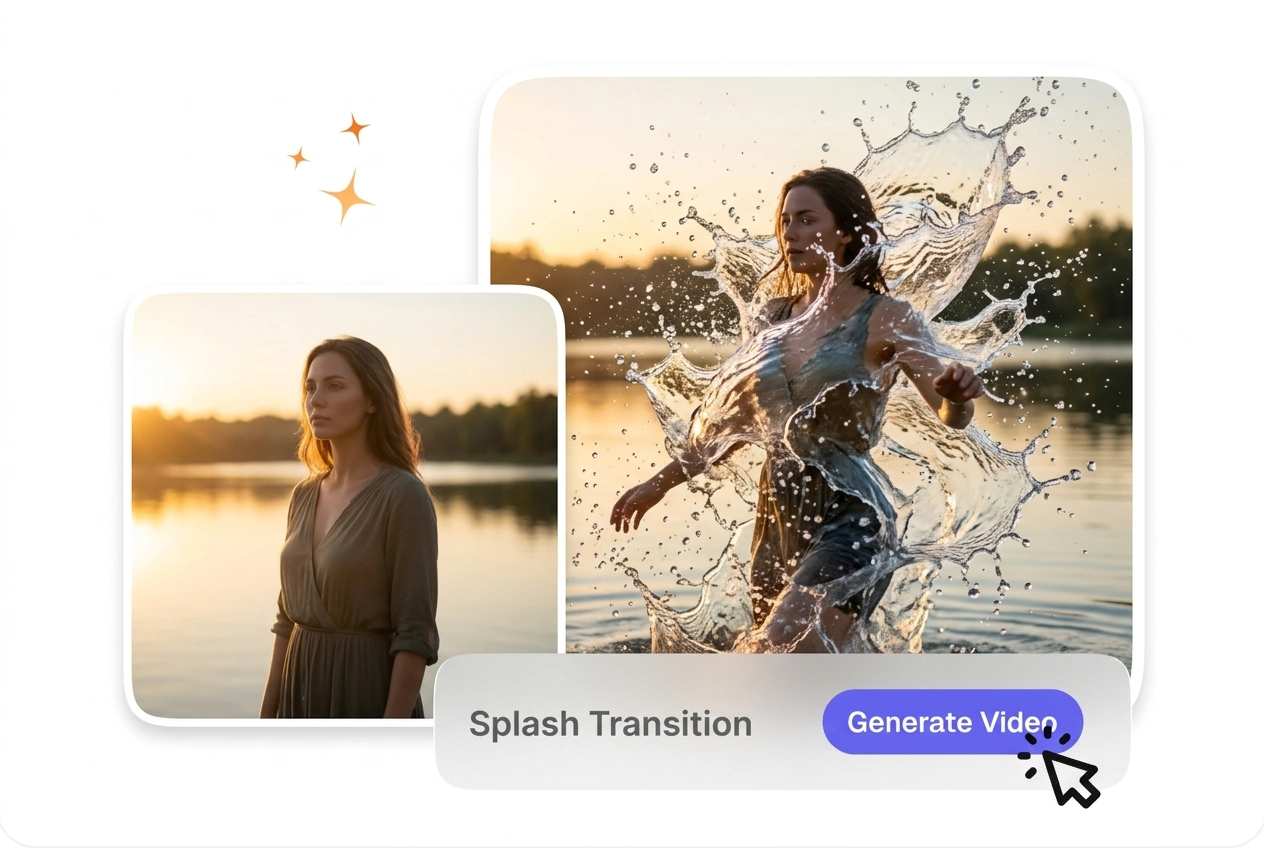
Splash Transition turns a source clip into a fluid visual handoff by layering splash motion across the frame. Footage with steady framing and moderate movement usually renders more predictably and makes preview output easier to assess.
VideoAI connects your two frames with a massive water wave. You get a clean splash transition effect ready for your final project timeline.
Different creators use this tool to connect unrelated scenes. A strong water wave hides the cut and keeps the viewer focused on the action.
Beginners often struggle with complex timeline settings. VideoAI provides a straightforward interface where you just upload two frames and type a prompt. The engine handles the complex fluid dynamics so you export a usable clip quickly.

Product showcases require clean cuts to maintain a professional look. You apply this Splash Transition to switch between different product angles smoothly. This keeps your social media advertisements engaging without requiring expensive agency editing.

Educational content needs clear visual breaks between distinct lesson modules. A controlled AI transition signals a topic change clearly. The predictable fluid motion ensures your students stay focused on the actual teaching material being presented.
Follow these clear steps to generate your fluid effect. VideoAI requires specific inputs to calculate the water physics and output a clean file.
You upload a starting image and an ending image to set the scene boundaries. VideoAI reads these frames to understand the color palette and geometry before generating the connecting water animation.
Type a text description detailing the water behavior and lighting conditions. Then VideoAI processes this prompt to shape the Splash Transition , so the resulting wave matches your specific visual requirements exactly.
Click the generate button to start the rendering process. After that VideoAI delivers a downloadable video file featuring the fluid motion, ready for you to drop into your main editing timeline.
VideoAI gives you precise control over the fluid generation process. These features help you shape the water movement to fit your specific project.
If you need a slow splash transition, your prompt dictates the exact pacing. You type the desired speed and volume into the text field. VideoAI renders the physics accordingly, though highly complex prompts might require a second generation.
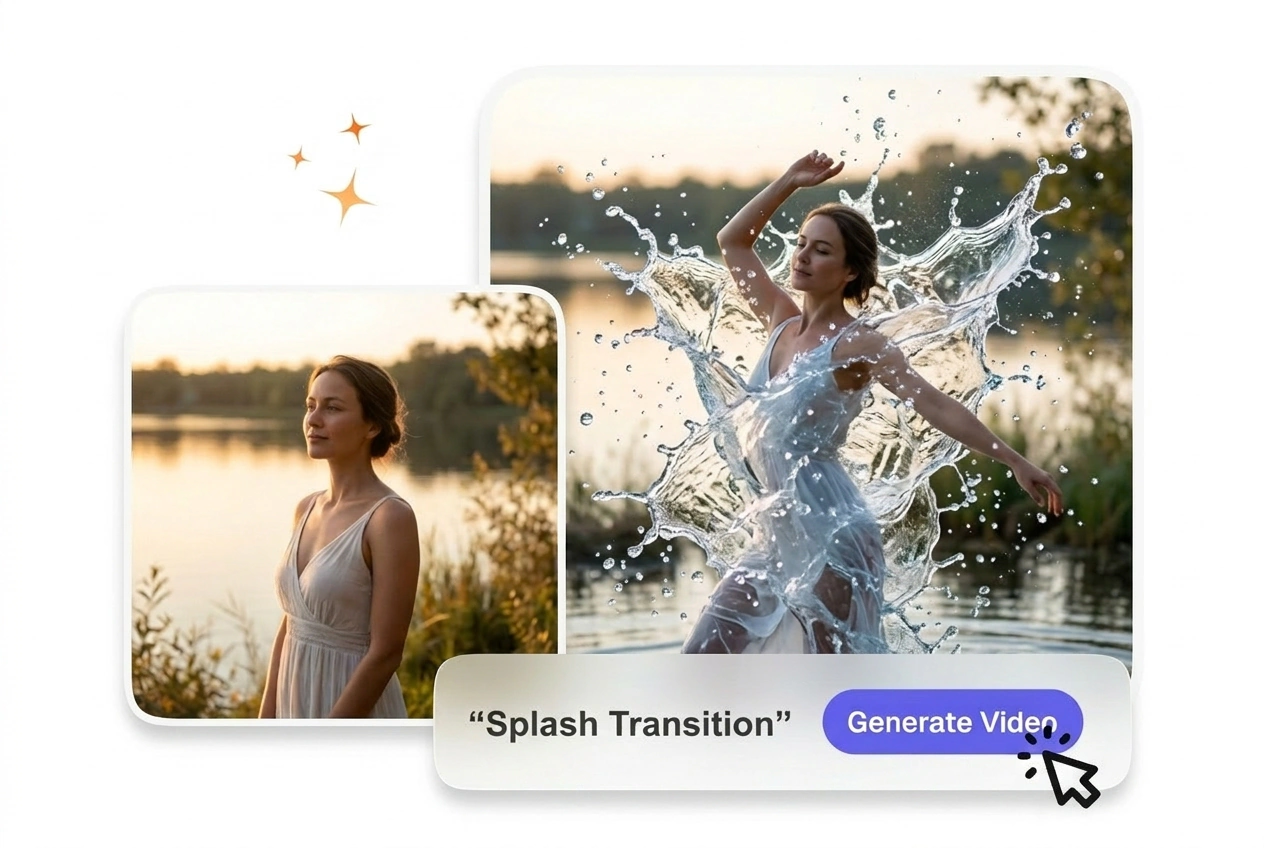
VideoAI analyzes the dominant colors in your uploaded start and end frames. You do not have to manually color grade the generated water. The output blends naturally with your existing footage, provided your original images have consistent lighting.
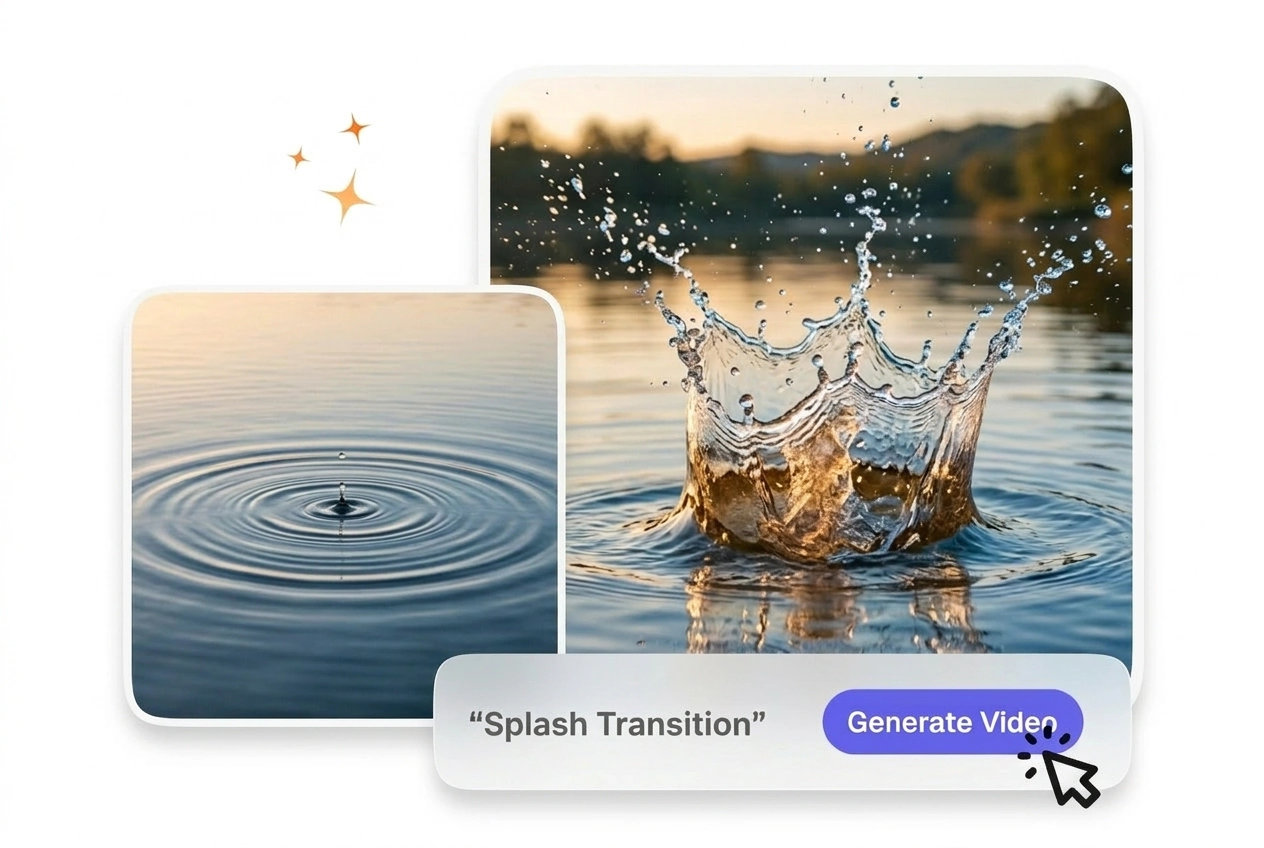
The AI video transition generator outputs crisp files suitable for professional timelines. You select your preferred resolution before hitting the generate button. High quality exports take slightly longer to process but prevent pixelation during fast liquid movement sequences.
Yes, you control the timing entirely through your text prompt. Mentioning rapid movement creates a faster wave, though extremely quick motions might blur. This helps editors match the fluid speed to fast paced audio tracks or energetic scenes.
Upload your starting and ending frames to see how VideoAI handles the fluid dynamics. Export a clean video clip for your next project.
Get Started