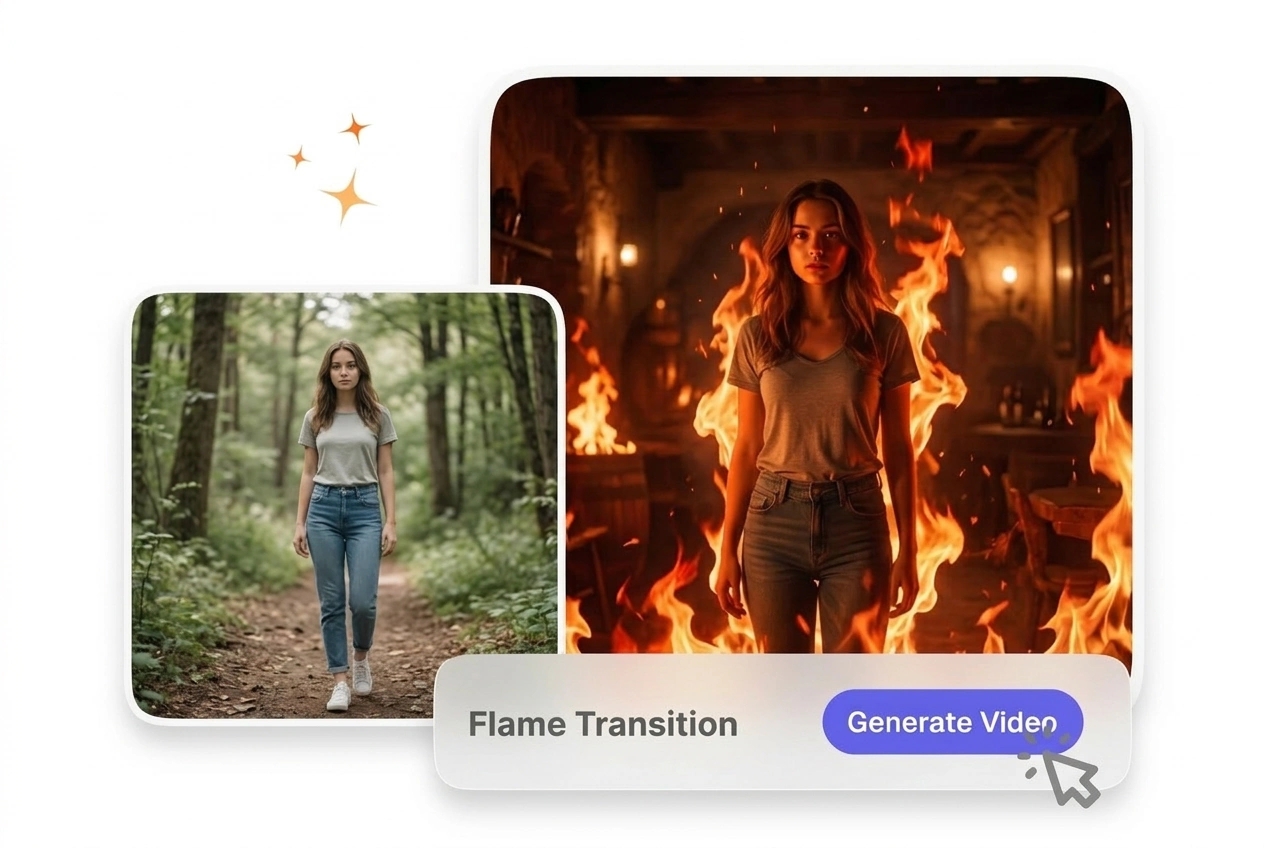

Free Flame Transition Video Generator

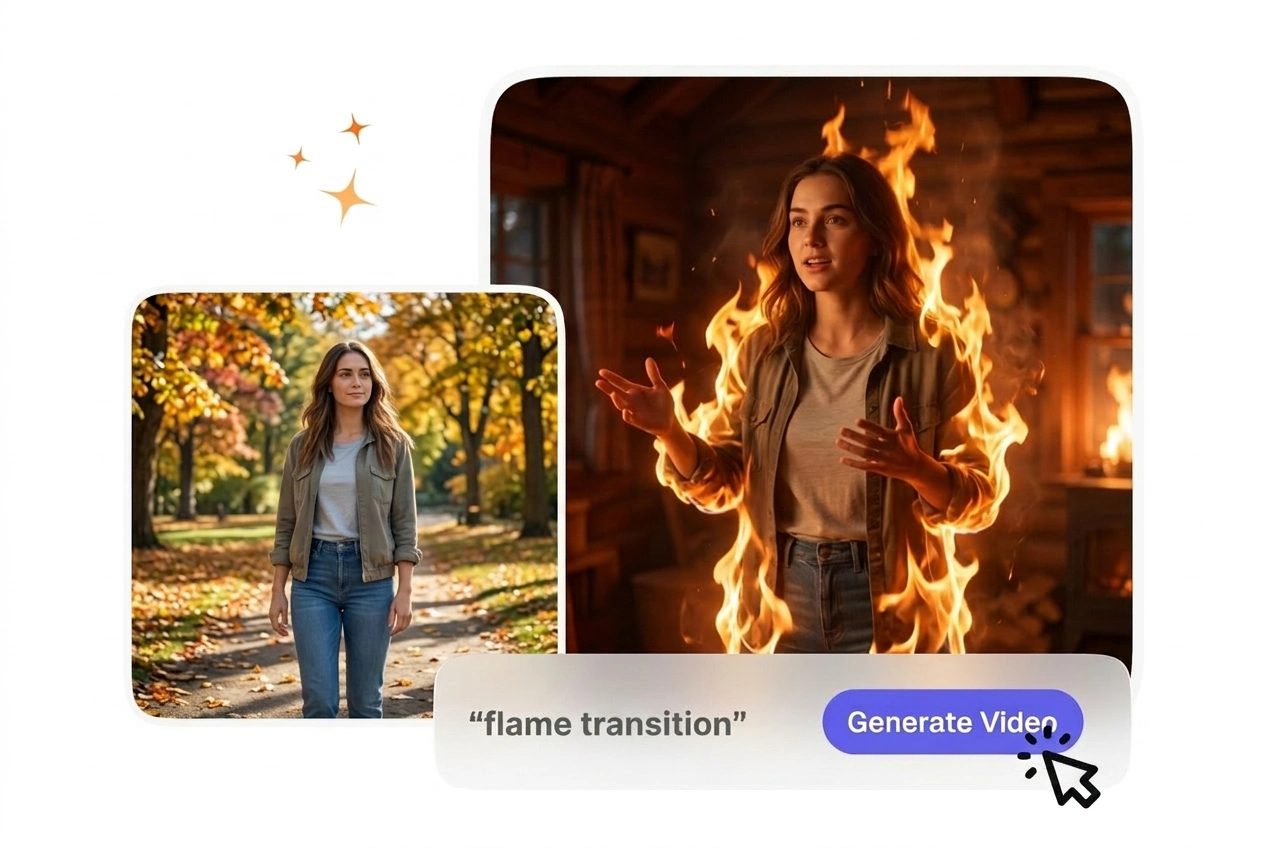
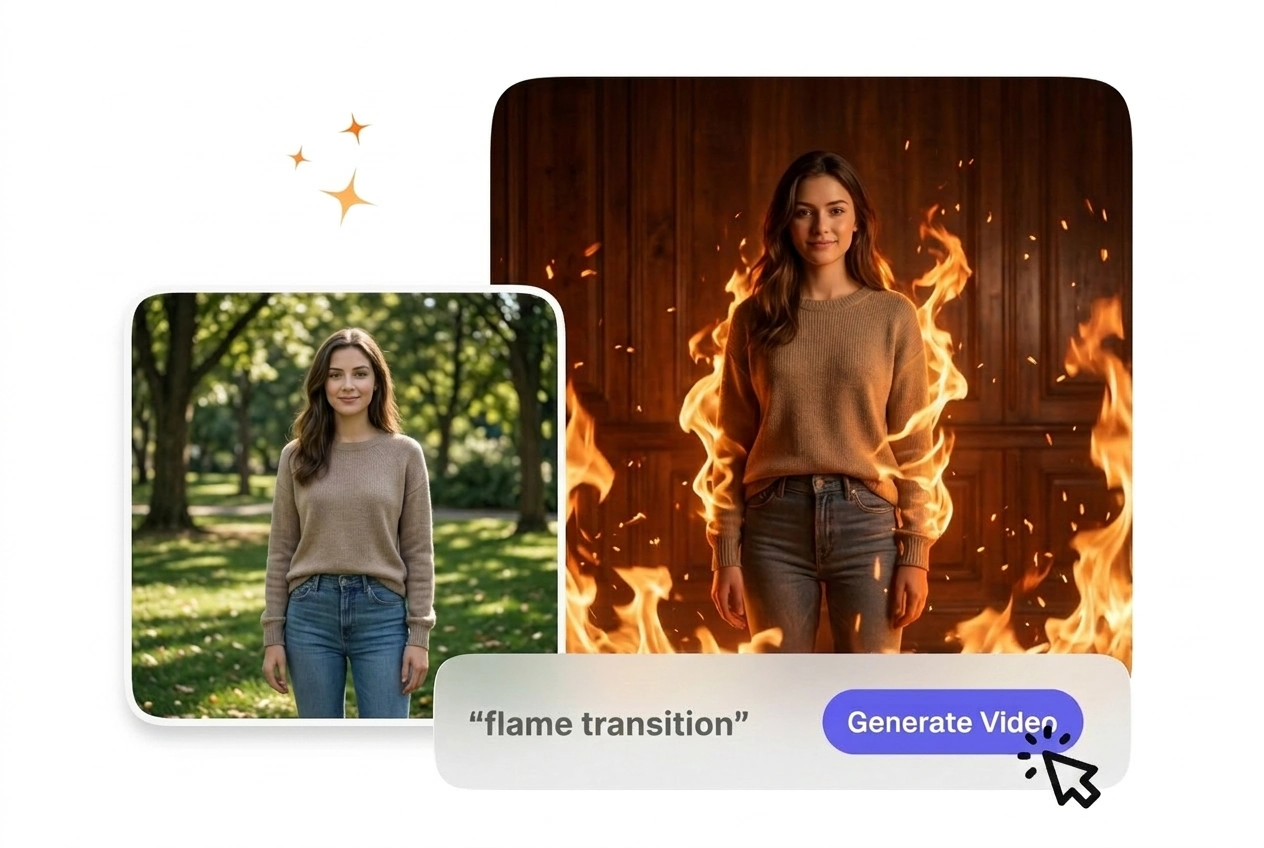
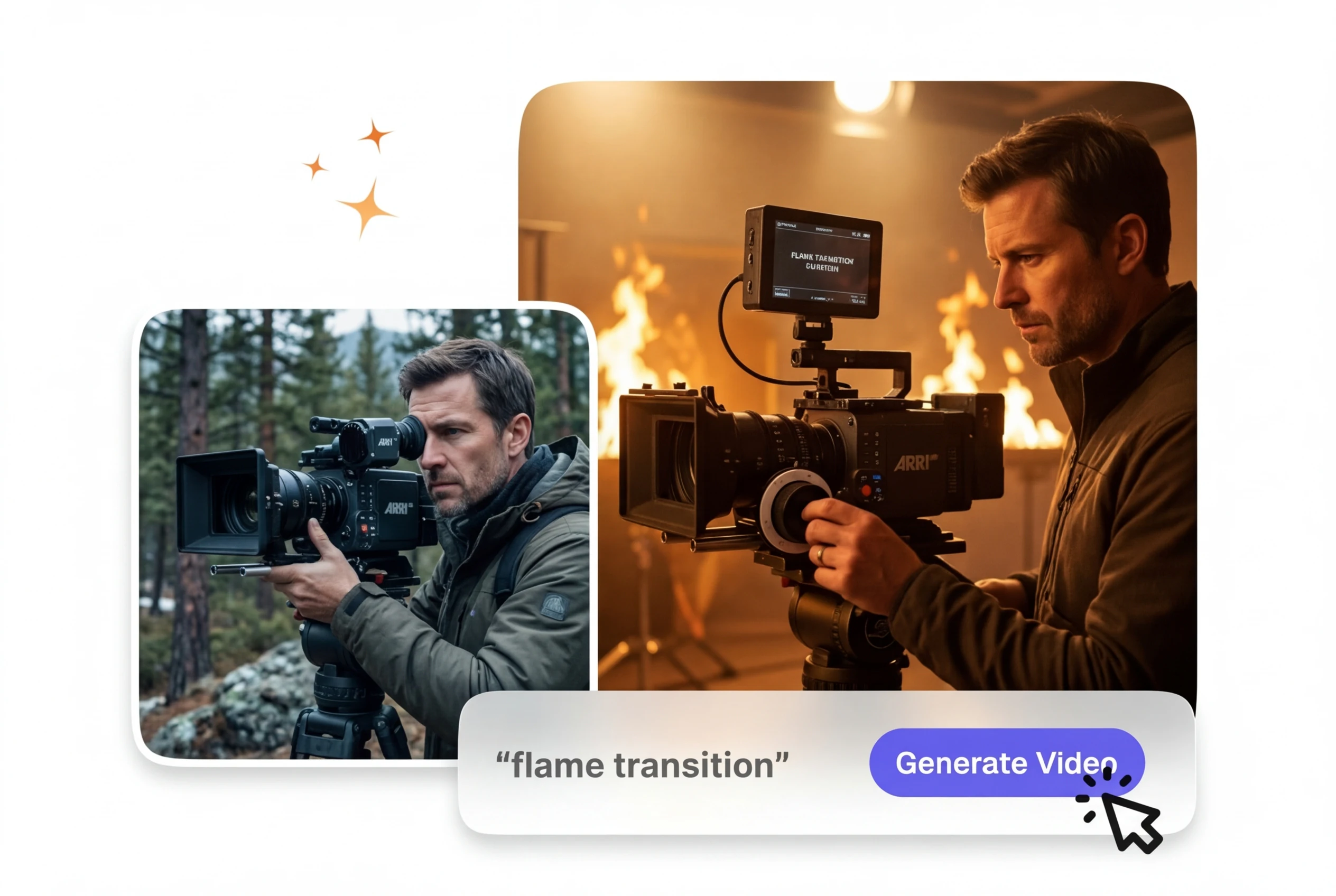
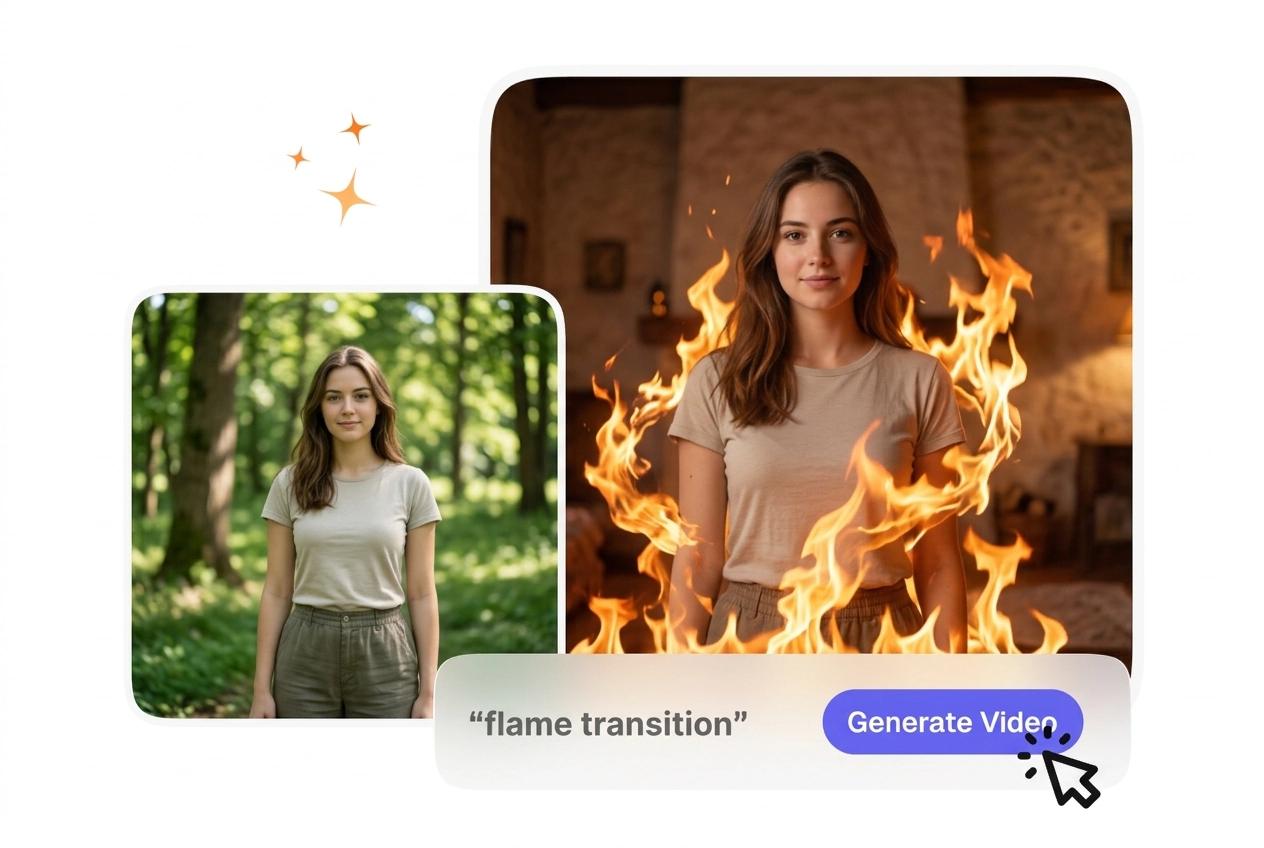
Flame Transition turns a source clip into a heated visual handoff by layering flame motion across the frame. Footage with steady framing and simple backgrounds usually renders more predictably and makes preview output easier to assess.

Clear Flame Transition Effects for Your Cuts

VideoAI builds a controlled flame transition from your start and end frames. You get predictable fire motion that connects scenes without distracting viewers.

Who Uses the Flame Transition Generator

Different creators need reliable scene cuts. VideoAI provides a structured way to generate a fire burn transition free from complex timeline editing steps.

Explainer editor using flame transition for lessons

Explainer Video Editors

Explainer channels need motion that supports the lesson. Controlled transition pacing keeps movement steady across the sequence, so attention stays on the teaching beat. This flame wipe transition works best with clear subject framing and lighting.
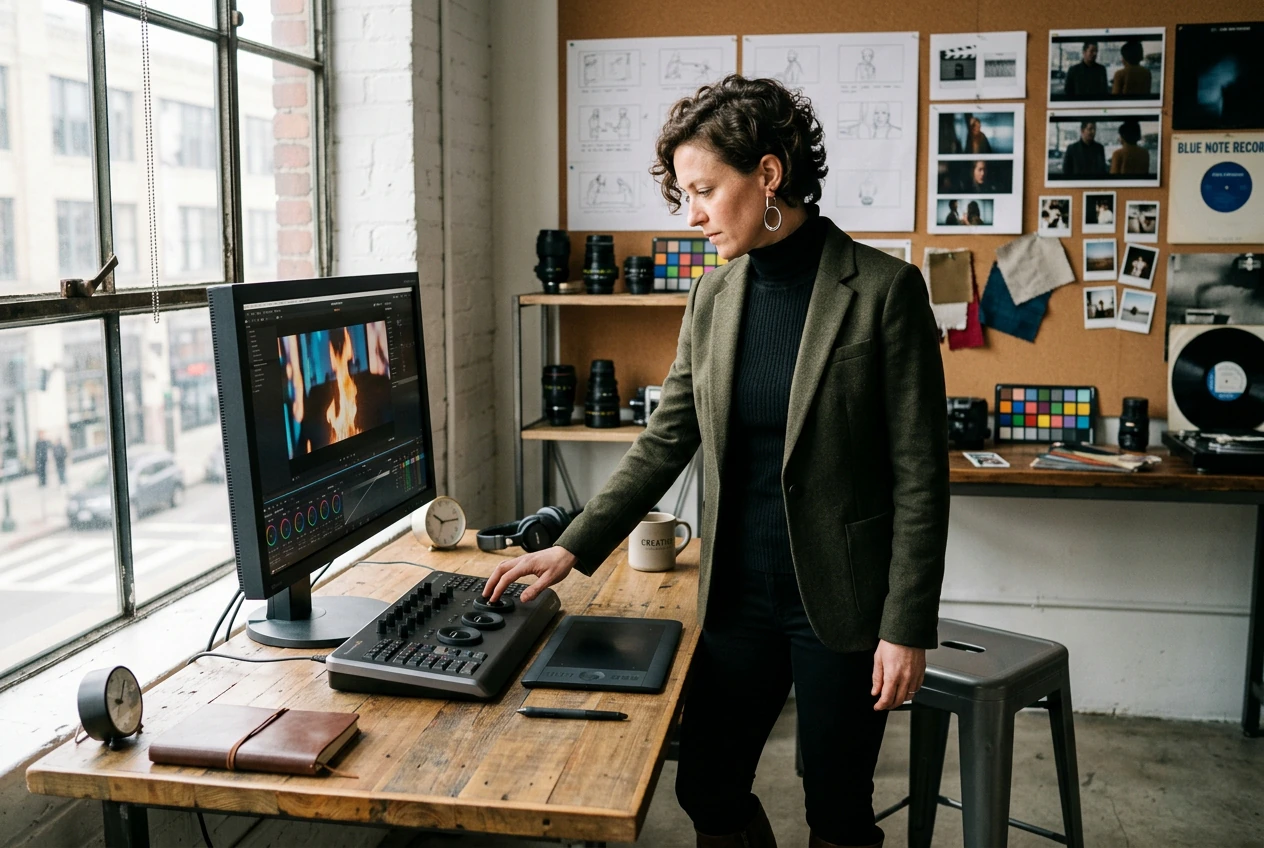

Business owner applying fire transition effect online

Small Business Owners

Retailers posting product clips rarely have time for deep editing software. You upload two frames, confirm the prompt, and export in one pass. Most weekly posts reach a postable fire transition effect in under ten minutes.

Beginner generating anime fire transition with VideoAI

First-Time AI Users

New AI video users often freeze on settings they do not need yet. VideoAI opens with a recommended preset based on your frames. You can adjust from a sane baseline to get a clean anime fire transition.

How to Build a Flame Transition

VideoAI keeps the generation process straightforward. You provide the visual boundaries, and the system calculates the fire animation needed to bridge them.

Step 1

Upload Your Frames

You start by uploading a clear start frame and an optional end frame. VideoAI reads these images to establish the visual anchor points for your upcoming fire effect on video.

Step 2

Define the Prompt

Type a short description of the flame style and direction you want. VideoAI processes this text to shape the fire video effect, so the resulting motion matches your specific instructions.

Step 3

Review and Export

When the preview finishes, you can export the file or adjust the prompt for different pacing. The final output delivers a clean transition fire effect ready for your editing timeline.

Features of the Flame Transition Tool

VideoAI gives you direct control over how the fire behaves between your frames. You manage the intensity and direction without needing complex keyframes.

Directional Motion Control

If you set a specific motion direction, the fire animation follows that path across the cut. You simply type the desired flow into the prompt box. This works best with subjects that remain relatively still during the transition.

Directional flame transition video effect motion control

Intensity Scaling Engine

VideoAI adjusts the visual weight of the flames based on your text input. You specify whether you need a subtle spark or a massive blaze. The resulting AI transition maintains high resolution, provided your source frames are well-lit.

Intensity scaling for AI video transition generator

Color Palette Matching

The system reads the dominant colors in your uploaded images to tint the fire naturally. You do not need to manually color grade the output file. This feature requires clear contrast in your start frame to function properly.

Color matching for flame transition video effect

Predictable Pacing Presets

VideoAI applies a consistent speed to the fire transitions across your generated clip. You select a duration preset before rendering the final file. Fast pacing works well for action sequences, while slower burns suit dramatic scene changes.

Predictable pacing presets for flames transition speed

Common Questions About the Flame Transition

Commercial use requires an active paid membership under our terms. Free access is for personal testing only, not for client work, paid ads, or resale. Open the pricing plan page for current commercial allowances—we do not list specific package names in this FAQ.

Try Your First Flame Transition Today

Upload your start and end frames to see how VideoAI handles the cut. You can test different prompts and export a clean file immediately.

Get Started