Free Hand Transition Video Generator

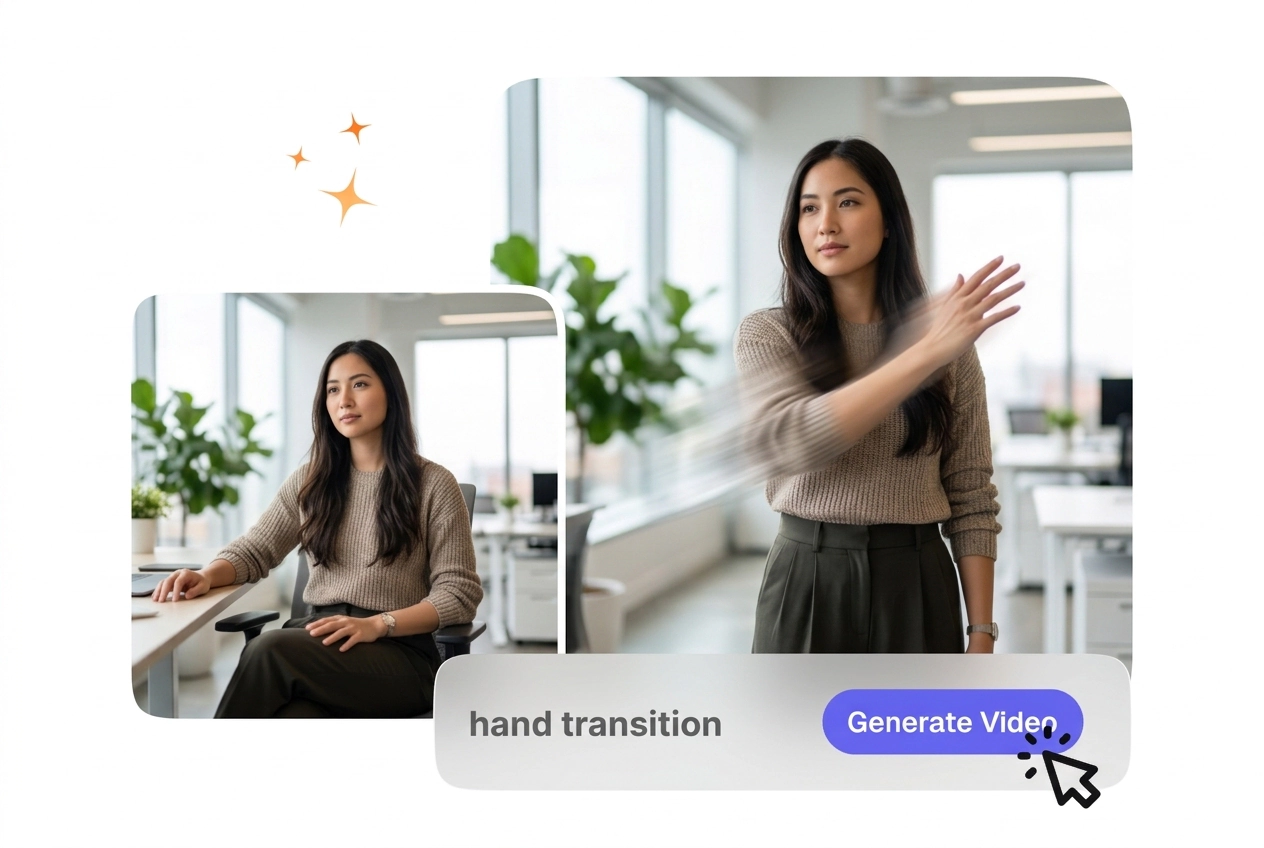
Hand Transition adds a hand led scene change that moves your clip from one moment to the next with a clear visual handoff. Clips with steady framing and simple foreground subjects usually preview more accurately and export with cleaner output.

Create a Clean Hand Transition

VideoAI builds a smooth hand wipe video transition from your frames and prompt. This effect works best with clear foreground subjects.

Who Uses This Hand Transition

Educators, small business owners, and first-time creators use this tool to connect scenes. Predictable motion keeps your audience focused entirely.

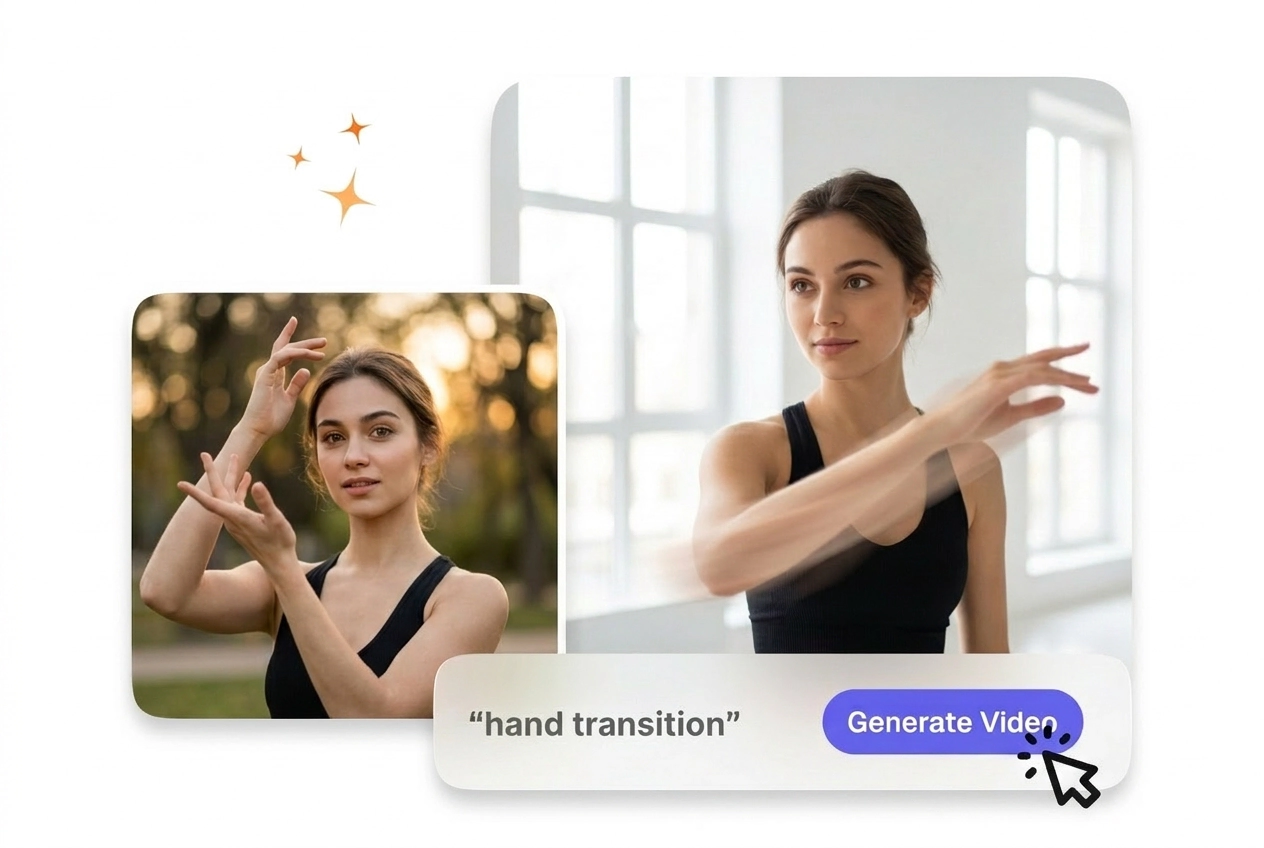
Instructor using Hand Transition for lesson video

Online Course Instructors

Teachers need visual changes that support the lesson without distracting students. You apply a simple hand swipe transition between slides or examples. The controlled pacing keeps movement steady across the sequence for better viewer retention.


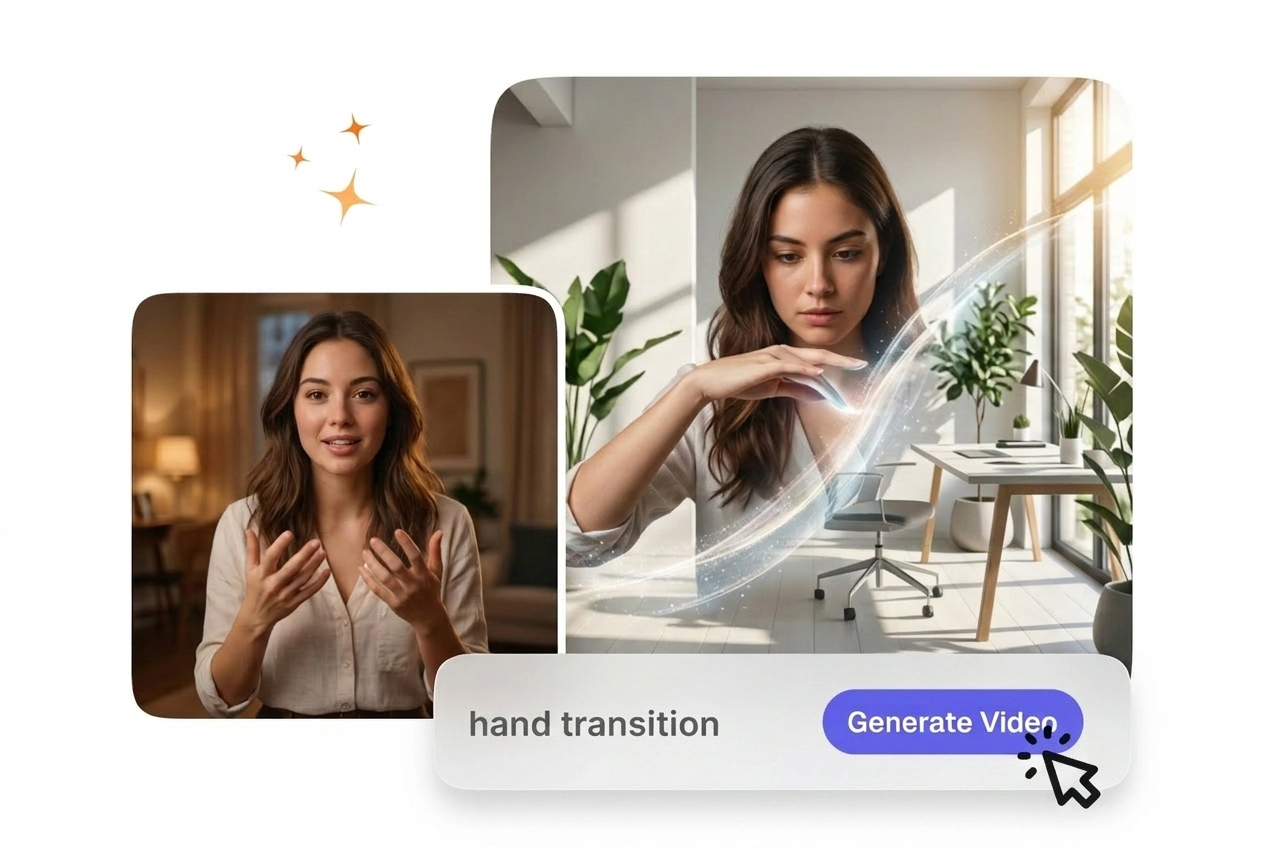
Marketer applying Hand Transition to product clip

Product Marketers

Small business owners posting product clips rarely have time for complex editing software. You pick a palm transition AI style and export quickly. Most weekly promotional posts reach a postable file in under ten minutes.

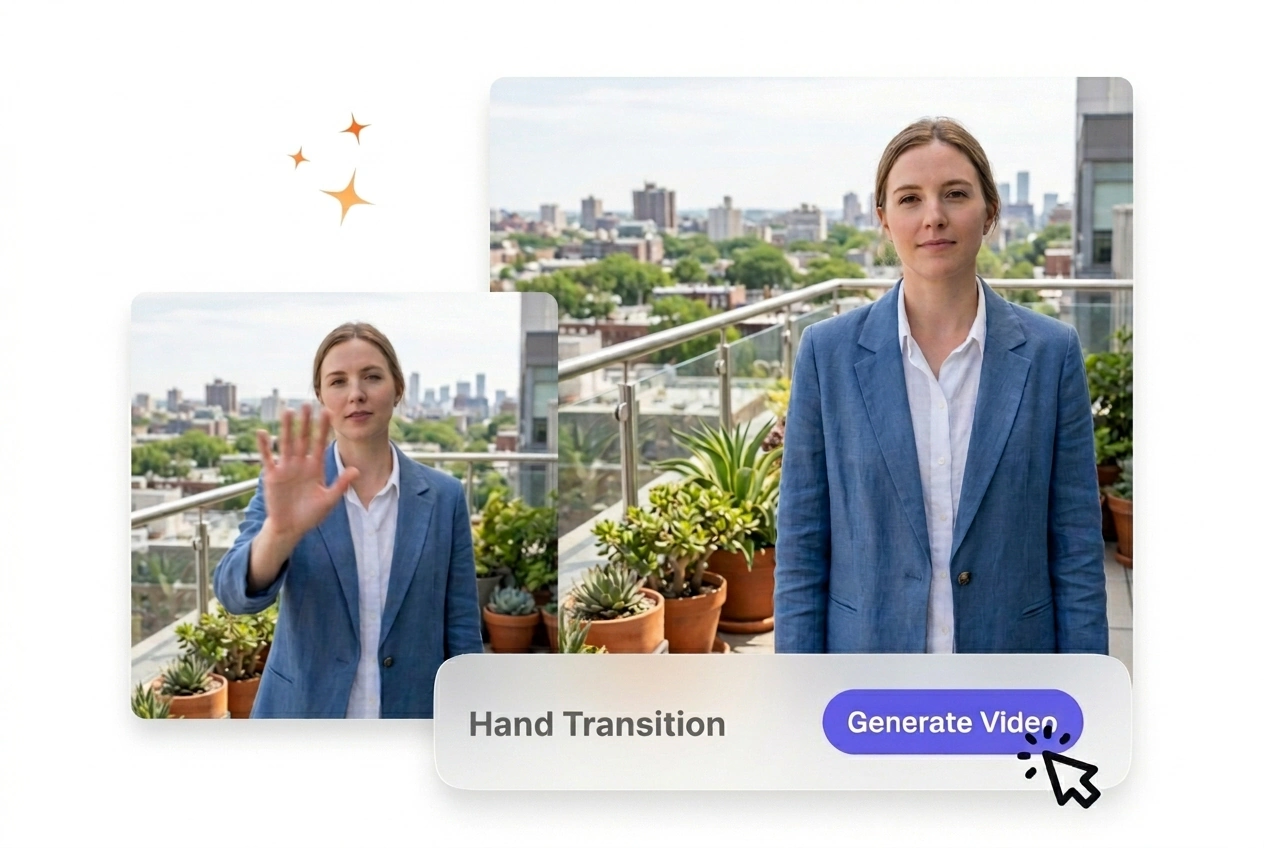
Beginner creating Hand Transition instagram reel post

Social Media Beginners

New users often freeze on settings they do not understand yet. VideoAI opens with a recommended preset for your hand transition tiktok project. You adjust from a sane baseline and export a clean file easily.

How the Hand Transition Works

Follow these steps to generate your AI hand transition. You provide the reference frames, and the system builds the connecting motion.

Step 1

Upload Your Frames

You upload a start frame and an optional end frame to define the scene. VideoAI reads the visual data to prepare the workspace. Clear lighting helps the system identify the main subject accurately.

Step 2

Write the Prompt

If your prompt specifies a direction, the movement follows that path. You type a description of the desired gesture. The system uses this text to shape the free hand transition effect.

Step 3

Export the Video

VideoAI renders the final sequence based on your inputs. You review the preview, then download the file. The resulting clip is ready to drop into your timeline for immediate publishing.

Hand Transition Effect Features

Understand how the tool processes your inputs to create creative hand transitions. Each feature gives you specific control over the final output.

Directional Motion Control

When you upload a clear starting frame, the engine maps the gesture precisely. You define the swipe angle in your text prompt. This works well for revealing new products, though abstract images might require adjustments.

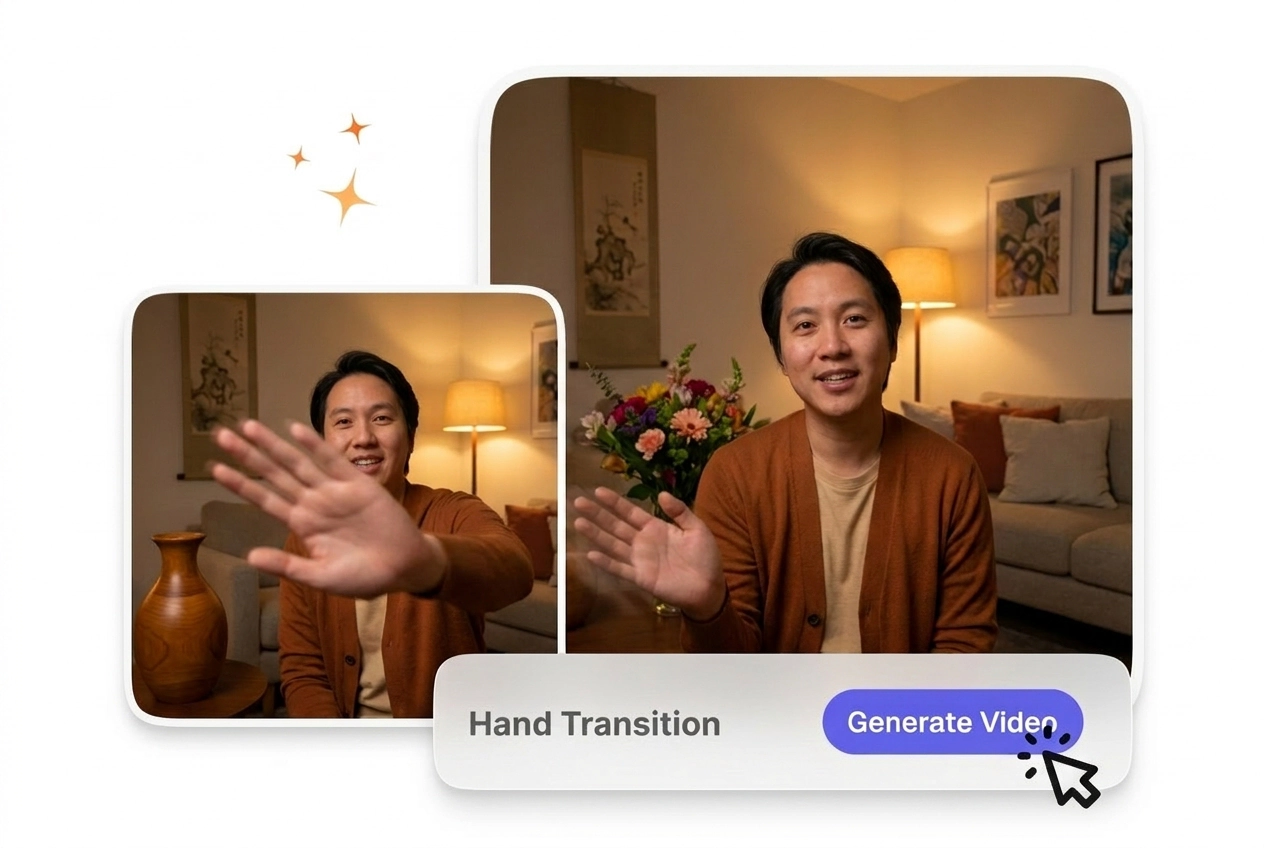
Directional motion control Hand Transition effect demo

Pacing and Speed Adjustment

The system reads your prompt to determine how fast the hand reveal transition moves. You select a duration setting before generating the file. Slower speeds suit educational content, while fast wipes fit energetic social posts.

Pacing adjustment for Hand Transition effect output

Custom Gesture Generation

VideoAI interprets your text to create a specific finger wipe transition or palm movement. You describe the exact hand shape needed for the scene. Complex gestures require highly descriptive prompts to ensure the generated motion looks completely natural.

Custom gesture generation Hand Transition effect preview

Style Matching Engine

The AI video Transition generator analyzes your reference image to match lighting and color. You do not need to manually color grade the output. This ensures visual consistency, provided your initial frames are well lit.

Style matching engine Hand Transition effect result

Hand Transition Common Questions

If the gesture looks blurry, try using a reference image with sharper contrast. The system needs distinct edges to render clean motion. This adjustment helps creators achieve professional results without needing external image enhancement tools.

Start Your Hand Transition

Upload your frames and see how VideoAI handles your images. Set up your prompt once, export a clean file, and review the final motion.

Get Started